Widget in Action
macOS System Dropdown
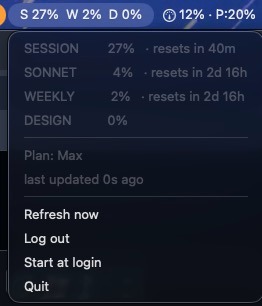
No floating windows to drag. Access Session, Weekly, and Design usage counters securely and in real-time, right from your macOS status bar.
Lives in your macOS menu bar next to the clock. Out of sight when writing code, one click away when you need to check limits.
Directly polls Claude.ai APIs in the background every 60 seconds. See your active Session (5h), Weekly (7d), and Design limits.
Cookies are stored locally on your machine. Your login session is directly connected to Claude.ai with zero third-party proxies.
Includes built-in auto-launch management. Toggle the "Start at login" switch directly from the menu drop-down.
Need an instant update? Select "Refresh now" in the dropdown to trigger the scraper immediately without waiting.
Mockup screenshots show the floating window's legacy styling, but the app integrates natively into dark/light macOS dropdown panels.
Grab the DMG file above, mount it, and drag Claude Bar into your Applications directory.
Open the app, select Log in in the menu bar. A secure login window will pop up. Enter your Claude.ai account credentials. Once logged in, the window closes automatically.
The app will start polling your usage. The current limits will display in the status bar: e.g. S 60% W 44% D 4%.
Because this app is ad-hoc signed, macOS will show a security warning. To bypass this, right-click the app in Finder and select Open, then confirm the launch dialog.